
Activation via license key
Plan Layout – Plugin
€58,90 *
(Recommended regular price – no special offers available)
– All prices are incl. the statutory VAT.
A powerful additional tool for creating overall plans
The Plan Layout module provides functions for the layout, design and presentation of plans and drawings to scale.
Plan Layout uses the current project data and construction details directly separation from the building model.
All modifications to the design are automatically updated in the plan layout since all data is based on the project model. This ensures that there are no discrepancies between project model and plans.
Certain standard functions such as text, auxiliary lines, 2D drawing functions, 2D symbols from the catalog etc. can also be used in top views. These functions help in the layout of the plan and support the input of objects such as images, photos or title blocks.
Once a title block has been created, variable texts such as “client”,” scale”, etc. can be defined and saved, and are then globally available for use in other projects. The variable text fields are then replaced automatically by the actual project values when the title block is used.
This module is included in the following cadvilla versions
Scope of services – plan layout
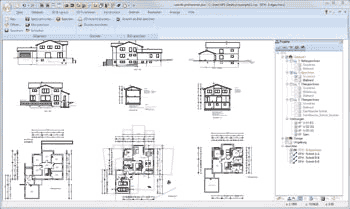
The plan layout module provides functions for the layout, design and display of plans and drawings to scale.
Plan layout uses the current project data and construction details directly without being separated from the building model.
All modifications to the design are automatically updated in the plan layout since all data is based on the project model. This ensures there are no discrepancies between project model and plans.
How to create an overall plan in three steps:
- Create one or more 2D views (for example a 2D top view, north, east, west and south views, and sectional views).in your project. While creating the views, you can modify their contents using the options for the visibility of the categories.
- The second step is to position the 2D views which you have created anywhere in the overall plan.
- The third step is to add 2D symbols, 2D graphic elements and images, which are provided or which you have created. Images can be photos but also the results of visualizations from 3D views of your project.
Creating a plan layout is that simple!