


When you open a cadvilla project, you may sometimes see warning dialogs about missing files. However, these messages usually refer to external 3D objects, 2D symbols, or textures that were linked by file path and are no longer available. Furthermore, this can happen when a project is opened on another PC or after sending it by email without the custom assets. Consequently, cadvilla can still open the project, but the broken references remain in the background until you remove them manually.
Why do missing file messages happen?
- To keep the project file small, cadvilla stores many externally added elements only as a file path, instead of embedding them directly.
- Standard cadvilla objects are included with every installation, therefore they are always found.
- Custom objects downloaded from the internet, however, often exist only on one computer (for example on your Desktop). Consequently, they cannot be located when you open the project elsewhere.
How to handle the warning dialogs
[0:51] Confirm the missing files dialog
- When the dialog
Missing files...appears, simply clickOK.
[1:39] Confirm the loading error message
- If a second message appears (for example a
Project-Managerdialog listing load errors), clickOKas well. - Afterward, your project opens normally, although the invalid links still exist internally.
Important note before deleting
cadvilla does not remove missing objects automatically. Therefore, your project can still display the objects correctly later, if you reopen the file on the original computer where the custom assets exist. Consequently, you should only clean the project if you are sure the files are permanently unavailable and no longer needed.
How to delete missing file references permanently
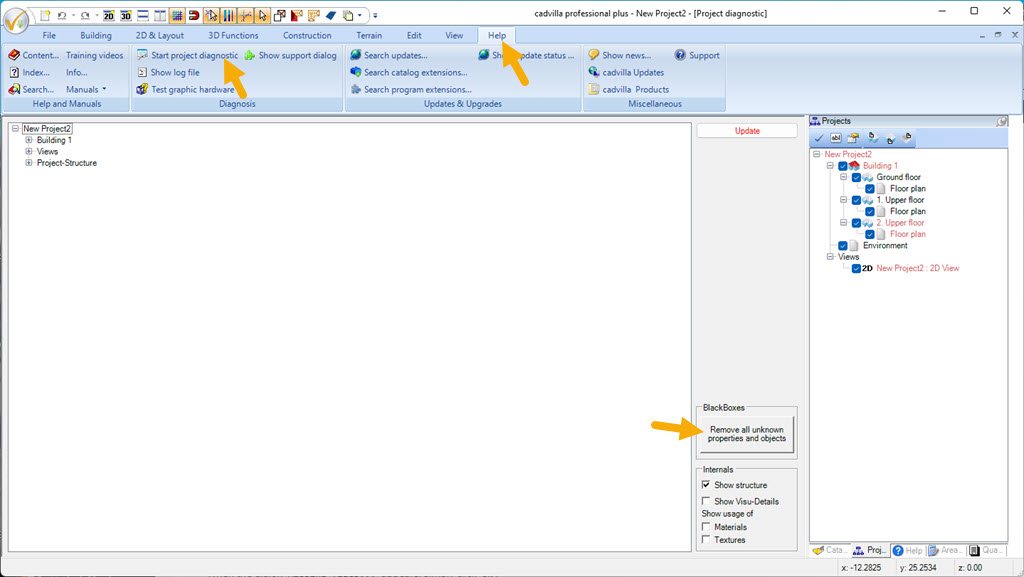
[1:52] Step 1: Start Project Diagnostic
- Open the top menu and click
Help>Start project diagnostic.
[2:03] Step 2: Remove unknown properties and objects
- In the
Project Diagnosticwindow, clickRemove all unknown properties and objects.
[2:11] Step 3: Confirm the warning
- A warning dialog appears:
This will remove all block-based properties and objects from the currently active document New Project2! Do you want to continue? - Confirm by clicking
OK.
[2:18] Step 4: Close the diagnostic window
- Close the
Project Diagnosticwindow (click theX/ close button).
[2:22] Step 5: Save your project
- To make the cleanup permanent, save the project via
File>Save.
Verification (recommended)
[2:41] Reopen the project to confirm
- Close the project and reopen it (for example via
File>Recently usedand selecting your file). - If no missing file dialogs appear anymore, the cleanup was successful.