


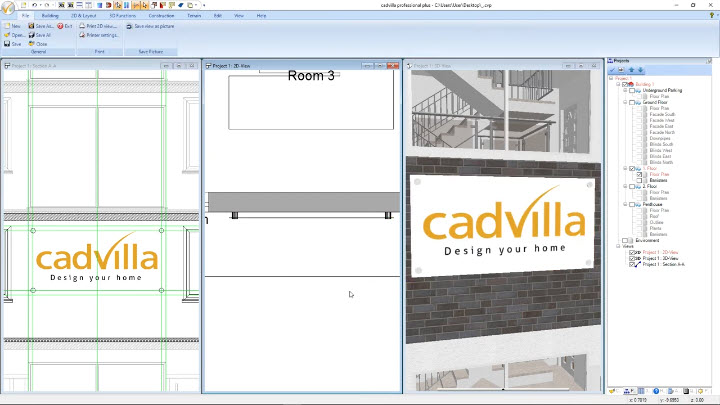
In this tutorial, you will learn how to create a custom 3D company sign with your logo and place it on a building facade in cadvilla. Furthermore, you will texture the sign for both 3D and 2D display so it remains visible in your plan and in your 3D view. Optionally, you can add realistic mounting bolts and apply a metal texture for a professional look. Finally, you will save the finished sign as a reusable group and insert it into new projects to save time.
Important Note (Version Requirement)
[0:38] Group function requires cadvilla 9.0 or higher
- Please note that the function
groupin this tutorial requires cadvilla version 9.0 or higher.
1. Prepare the Logo Image (Aspect Ratio and File Size)
[1:02] Select a suitable image file
- Prepare your logo as a
JPEGorPNGfile on your computer. - In the example, the tutorial uses a JPEG first, and later shows a PNG with transparency.
[1:43] Check the aspect ratio in Windows
- Right-click your logo file and select
Properties. - Switch to the
Detailstab. - Check
Dimensions(example shown:1200 x 600), therefore the aspect ratio is 2:1.
[2:24] Keep resolution and file size reasonable
- Use a resolution that is not too low, however also not unnecessarily high.
- The tutorial recommends keeping the file size below 200 KB, because very large images can be counterproductive for 3D display.
2. Create a Section View and Define Guidelines for the Sign
[3:04] Create a new section view
- Switch to the 2D view of your project.
- Click
Viewand selectNew Section View. - Insert the section line in front of the facade. Hold
CTRLto create a horizontal section view line.
[3:40] Arrange windows for parallel work
- Click
Viewand selectVerticalto arrange the views side-by-side.
[3:57] Create guidelines in the section view
- Click
2D & Layout. - Open
2D Guidelinesand selectGuideline>Numeric parallel guideline. - Alternatively, press
P(shortcut) for the numeric guideline tool.
[4:17] Define distances precisely
- Place a guideline and enter the
Distance from reference pointvalue as required (confirm withEnter). - Create additional guidelines to match your logo aspect ratio.
[4:48] Create a centered vertical guideline reference
- Press
Gfor a vertical guideline. - Right-click and choose
Construction support>Center point. - Click the left and right reference points (for example between windows) to define the center.
[5:32] Verify the sign proportions
- In the example, the tutorial defines a guideline frame of 3.00 m width and 1.50 m height, which matches a 2:1 logo ratio.
- Consequently, the logo will not appear distorted on the sign.
3. Create the 3D Surface for the Sign and Apply the Logo Texture
[6:22] Create a single 3D surface and draw the rectangle in the section view
- Click
Construction>Single 3D surface>Insert with rectangle. - Select the wall surface in the 3D view first.
- Then draw the rectangle in the section view using the guideline intersections.
[6:47] Define surface parameters and assign the 3D texture
- The
single 3D surfacedialog opens automatically. - Set
Thicknessto0.01 m. SetDistance from planeto0.10 m. - Click
Tiles. - In the following dialog select
3D-View. - Click
Textureand choose your logo image file, then confirm withOK. - Adjust appearance values if required:
Diffuse portion(example shown:100.0%)Intensity(example shown:30.0%)Highlight size(example shown:30.0%)
4. Define the 2D Display (So the Logo Is Visible in the Floor Plan)
[7:51] Switch to 2D display settings
- In
Tilesdialog, click2D Display. - For
Fill style, selectTexture. - Select the same logo image again.
[8:24] Fit the texture and set exact size
- Enable
Adjust to area. - Enter
Width=3.00 mandHeight=1.50 m(or your exact values). - Confirm with
OK.
[9:01] Fix tiled preview (stretch to full surface)
- If the logo appears tiled, click the button with the four green arrows to stretch the texture over the entire surface.
- Confirm with
OKagain.
5. Add Mounting Bolts (Optional)
[9:28] Note: bolts require professional editions
- For creating bolts, you need
cadvilla professionalorprofessional plus.
[10:04] Create a cylinder and set cylinder dimensions
- Click
Construction>Primitives>Cylinder>Free positioning. - Right-click in a 2D view and select
Properties. - Set:
Radius=0.05 mHeight=0.12 m
- Confirm with
OK.
[11:00] Rotate the bolt horizontally
- The cylinder is selected.
- Click
Editand selectaround X-axis. - Rotate by
270degrees, therefore the cylinder becomes horizontal.
[11:46] Move the bolt precisely
- Press
Rfor move with reference point. - Move the cylinder to the correct position on the wall using the section view and guidelines.
[12:46] Create the other bolts
- Right-click the cylinder and choose
Multiple copy. - In the tool options:
- Set
Numberto3 - Set
Distanceto0.30 m - Set direction to
Left (180°)
- Set
- Confirm with
OK, then reposition bolts if required withR.
[14:02] Apply a metal texture
- Open
Catalog>Textures>Materials>Metal. - Select
Aluminium. - Drag and drop the texture onto the cylinders in the 3D view.
6. Save the Sign as a Group
[14:25] Save selection as group
- Switch to the 2D view.
- Select the entire sign, including bolts, with a selection frame.
- Right-click and choose
Save selection as group.... - Enter a group name (example shown:
Company Sign) and confirm withOK(twice).
7. Insert the Group into a New Project and Edit It
[15:26] Insert the group from the catalog
- Open a new project.
- Click
Catalog, then openCatalog - Groups. - Select
My groups. - Double-click the group to preview it, and then drag and drop it into the plan.
[15:59] Important: drag into the 2D view
- Always drag a group into the 2D view if you want it displayed in 2D as well.
[16:37] Reposition precisely
- Press
R(move with reference point) to center the sign between windows.
[17:33] Separate the group to make changes
- Right-click and select
Separate group. - Then you can delete bolts or replace the logo texture.
[17:54] Replace JPEG with PNG (with transparent background)
- Open
Propertiesof the sign. - Click
Tiles>2D Display. - Select
Logo_PNG.pngand confirm withOK(twice). - Consequently, the transparent background is displayed correctly.