


Welcome to our quick guide on restoring a classic drawing function in cadvilla. Starting from version 10, the exact numeric polygonal input became the standard default method. However, you can effortlessly reactivate the older “wall input with post-processing” feature inside the settings. In this short tutorial, we will systematically explain exactly how to enable this specific tool. Ultimately, this flexibility allows you to draw external walls exactly the way you prefer.
1. Missing the Classic Input Method?
Do you miss the familiar function for entering walls with numerical post-processing? Generally, the new numeric polygonal input is considered significantly more comfortable. Because it is highly efficient, the old method was completely removed from the standard menu originally. Nevertheless, you still maintain the explicit option to turn this classic input form back on at any time. Therefore, we will closely strictly show you how to reactivate this specific tool. Thus, you can easily restore your preferred workflow without any hassle.
2. Step-by-Step Activation Guide
First of all, you must precisely navigate to the top ribbon menu. Specifically, click on the Settings tab and firmly select the Program option.

- Consequently, the main dialog window for general program settings will open immediately.
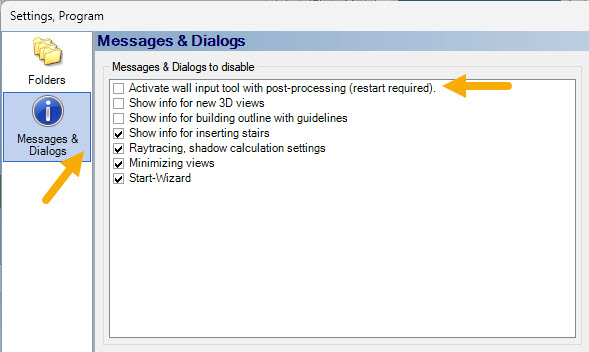
- Then, meticulously navigate to the left directory tree and click on the
Messages & Dialogssection. - Next, look closely at the available options displayed on the right side.
- Here, thoughtfully search for the specific option named
Activate wall input with post-processing (Restart required). - Afterward, accurately place a checkmark right in the corresponding checkbox. Indeed, this simple action officially turns the classic function on.
- Finally, firmly confirm all your changes by clicking
OKin the bottom right corner.
3. Important Note on Restarting the Software
Importantly, as the specific name of the option already suggests, this modification is not applied instantly. Therefore, the restored menu item will definitely not appear during your current active session. Consequently, to make the tool visible inside your user interface, you must completely close the cadvilla software first. Afterward, simply restart the program entirely. Ultimately, the familiar wall input feature will be fully accessible for your upcoming projects.