


Do you want to activate and license your cadvilla software quickly and correctly? In this guide, you will learn exactly how the activation process works and which information you need in advance. In addition, we explain the differences between the available cadvilla versions, and we also show you how to handle offline activation or a computer change. As a result, you can complete the licensing process smoothly and continue working on your projects without interruption.
1. Differences Between the Versions
- cadvilla basic and basic plus: If you purchase one of these versions, the product is already licensed to you before delivery. Therefore, no separate activation is required after installation.
- cadvilla professional and professional plus: These versions must be licensed directly on your system after installation. However, after installing the software, you can test it in full for 5 days. During or after this period, you must complete the final activation. The good news is that any projects created during the trial period can still be edited afterward without any problems.
2. Required Information for Activation
To request your activation file, also called the license file, you need three important pieces of information:
- Reference number (order number): You can find this in the order confirmation email sent by cleverbridge AG. In older versions, the confirmation may have been sent by MyCommerce/element 5. The format is a 9-digit number, for example
123456789. - License key (product key): This key is also included in your order confirmation. It has the format
XXXX-XXXX-XXXX-XXXXand consists of 16 uppercase letters. It confirms that you have purchased a full version. - Serial number: cadvilla generates this number individually based on your hardware and operating system. You can find it in the activation dialog that appears when you start the software before it has been activated. Simply click
Request license file.
Note: The serial number shown is different on every PC.
3. Step by Step: How to Activate cadvilla
Follow these steps to activate your software successfully:
- Start cadvilla.
- In the startup dialog, click the button
Request license file. - Then select
Copy serial number to clipboardand clickGet license now at the online shop!.
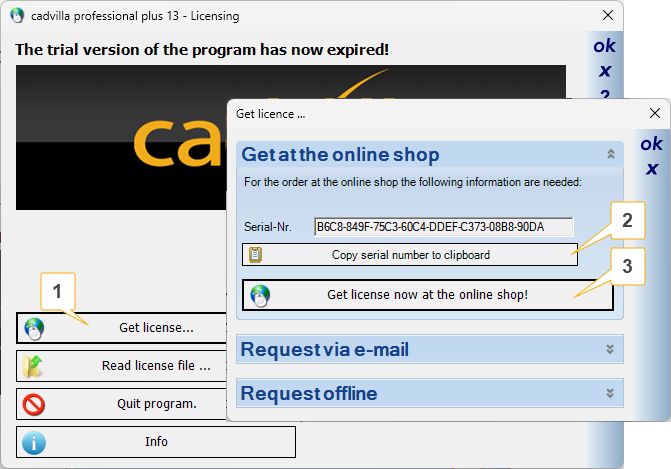
- Your internet browser will automatically open the activation form.
- Enter your reference number, the purchased product version, and your license key.
- Next, enter your contact details and paste the copied serial number into the corresponding field (Name: your serial number from the cadvilla dialog) using
CTRL + V. - Then click
Next. - In the following window, check all entered data carefully and click
Send activation request. - Immediately afterward, you will receive a confirmation email at the email address you entered. If you do not receive it, please check your spam folder or verify whether the email address was entered correctly.
- We will then review your data and send you the license file by email within a maximum of 48 hours. The file extension is usually
.XML, or.keyfor older versions. - Save the received file, for example on your desktop.
- Start cadvilla again, click
Read license file, select the saved file, and confirm withOpen. - Your software is now activated successfully.
Note: If you receive an error message while loading the file, you probably entered an incorrect serial number or selected the wrong version when submitting the activation request.
4. Changing Computers and Offline Activation
Sometimes, you may need to activate cadvilla again, for example when switching to a new computer or when working without internet access.
Changing computers:
Because the license file is linked directly to your hardware, you need a new activation when using a new PC. Simply request a new license file using the newly displayed serial number of the new system. Afterward, uninstall the software from the old computer.
Offline activation:
If your PC does not have an internet connection, you can still complete the activation process:
- On the offline PC, click
Request license fileand write down the displayed serial number. - Then switch to another PC with internet access.
- Open the activation form on the website and fill it in using the noted serial number.
- After receiving the license file by email, save it to a USB stick.
- Insert the USB stick into your offline PC and load the file there as described above.