


Have you ever wished you could keep watching a YouTube video or a livestream while researching in another tab, writing emails, or even working in a completely different program? This is exactly where the Picture-in-Picture (PiP) function comes into play.
With the PiP function, you can easily detach a video from the website. It then floats as a small, freely adjustable window over your other open programs. This is particularly practical for the cadvilla support articles. You can comfortably let the detached video run on the side while simultaneously keeping an eye on the corresponding text (with timestamps for the video) and the cadvilla software. This way, you always maintain an optimal overview.
Here is an example of how to arrange the browser, the floating video, and the cadvilla software on your desktop for quick learning and parallel drawing.

🦊 Picture-in-Picture in Mozilla Firefox
Firefox has integrated the Picture-in-Picture function excellently, making its use particularly intuitive.
How to activate PiP in Firefox
Usually, the function is activated by default in Firefox. If you do not see the PiP icon on videos, you can turn it on in a few simple steps:
- Click on the menu icon (the three horizontal lines) in the top right corner of the browser and select Settings.
- Stay in the General tab and scroll down to the Browsing section.
- Check the box for the option Enable picture-in-picture video controls.
How to use PiP in Firefox
- Open a website with a video (e.g., the cadvilla support page) and start the video.
- Move your mouse cursor over the video.
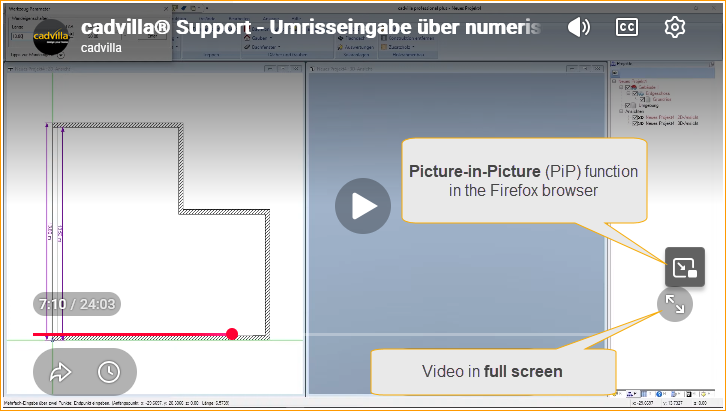
- A small icon with two interlocking squares (Picture-in-Picture) will appear on the right edge of the video.
- Click on this icon. The video will now pop up in a separate window.
- Controls: You can resize the floating window by dragging its edges with the mouse and place it freely anywhere on your screen. Within the PiP window itself, you can pause the video, mute it, or send it back to the original tab (by clicking the “X” or the PiP icon in the floating window).
- Alternatively, after starting the video, you can also activate the Picture-in-Picture function in the browser bar by clicking on the PiP icon.

🌐 Picture-in-Picture in Google Chrome
Google Chrome also offers a native Picture-in-Picture function, although it is accessed slightly differently than in Firefox.
How to activate PiP in Chrome
In current versions of Google Chrome, the PiP function is fully integrated and does not need to be activated separately in the settings. It is ready to use immediately.
How to use PiP in Chrome
There is a simple way to switch a video to PiP mode in Chrome:
Via the Media Control Menu (The easiest way)
- Start a video in your Chrome browser.

- Click on the Media control icon (it looks like a small musical note with three lines) in the top right corner of the Chrome toolbar (next to your extensions and profile picture).
- A small menu will open showing what is currently playing. Click on the Picture-in-Picture icon (a small square inside a larger square) there. The video will now detach.
Controls: Just like in Firefox, you can freely move the Chrome PiP window, adjust its size, and pause the video. To close it, simply click the “X” in the top right corner of the floating window or the “Back to tab” button.
🌊 Picture-in-Picture in Microsoft Edge
Since Microsoft Edge is built on the same technical foundation as Google Chrome (Chromium), the Picture-in-Picture (PiP) function works very similarly here. However, Edge has also taken some inspiration from Firefox and offers a particularly convenient solution.
How to use PiP in Edge
Via the Media Control in the Toolbar
- As soon as a video or audio is playing in the browser, a small icon with three lines and a musical note appears in the top right corner of the Edge toolbar (next to the address bar).

- Click on it. A small window will open with the currently playing media.
- Click on the Picture-in-Picture icon there to detach the video.
Conclusion
The Picture-in-Picture function is a real game-changer for anyone who likes to multitask. Whether you are following a tutorial, watching the news on the side, or simply keeping an eye on music videos – both Firefox and Chrome make it extremely easy for you with just a few clicks. Try it out directly with the next video!
Try Picture in Picture now with this sample video