


Are you trying to add custom objects, symbols, or textures to your cadvilla library but facing saving issues? The Windows User Account Control (UAC) often blocks direct saves to system folders to protect your computer. In this guide, we will show you how to easily bypass these restrictions. Learn the best methods to manage UAC settings and successfully integrate your custom files into cadvilla.
Handling and Disabling User Account Control (UAC)
If you want to expand the existing cadvilla libraries with your own objects, symbols, or textures, you usually save these files in the cadvilla installation folders (e.g., under C:\Program Files\cadvilla...).
The Problem: The Windows User Account Control (UAC) protects these system folders from unauthorized changes. When cadvilla tries to save a file directly into these protected folders, Windows often blocks the action or requires explicit administrator rights.
To successfully integrate your custom files into the library anyway, you have two options:
Option 1: Manual Copying (Recommended)
This is the safest method because you do not need to change your Windows security settings.
- First, save your newly created objects or symbols in a neutral folder (e.g., in “My Documents” or on your Desktop).
- Open the Windows File Explorer.
- Manually copy or move the files into the corresponding target folder within the cadvilla directory (see the list below). Windows will ask you once for administrator confirmation. Simply confirm this prompt.
Option 2: Disabling User Account Control
If you prefer to save files directly from cadvilla into the program folders, you must lower the security level of the User Account Control.
How to disable UAC (Windows 7 / 8 / 10 / 11):
- Click on Start and type “UAC” (or navigate via Control Panel > User Accounts).
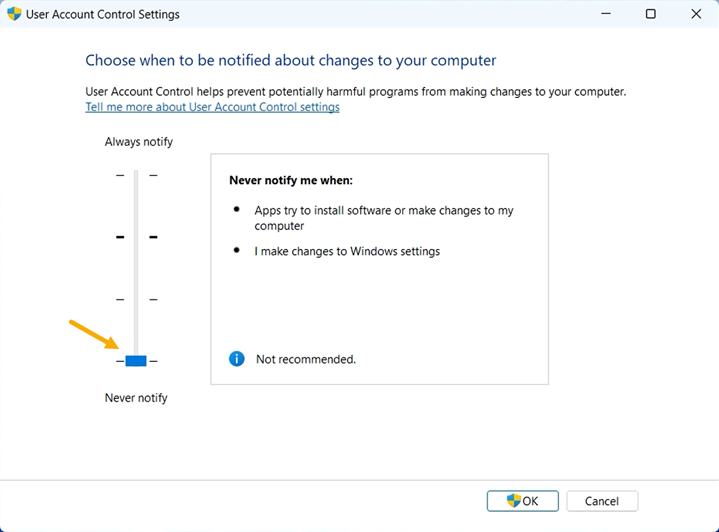
- Select “Change User Account Control settings”.
- In the window that appears, drag the slider all the way down to “Never notify”.
- Confirm with OK and restart your computer if necessary.

Directory Structure of the Libraries
You can find the libraries in the cadvilla installation directory. (Example path: C:\Program Files\cadvilla professional plus 12\...)
Here are the specific subfolders for different file types:
- 2D Symbols:
...\Graphics2D - 3D Objects:
...\Objects - Textures / Materials:
...\Textures - Background Images:
...\Backgrounds - Window Constructions:
...\AEC\WindowConstructions - Door Constructions:
...\AEC\Doors - Profiles:
...\AEC\Profiles - Solar Elements:
...\AEC\Solar
Tip: Create Your Own Catalogs
You can create new subfolders within the directories mentioned above at any time (e.g., a folder named my-furniture inside the Objects directory). Cadvilla automatically recognizes these folders. After you restart the program (or refresh the catalog), they will appear directly as a custom category in your selection.
Example: C:\Program Files\cadvilla professional plus 12\Objects\my-furniture\Chair.cyg