


Welcome to our guide on navigating the cadvilla workspace. In this tutorial, we will show you how to securely move any architectural element by using relative coordinates (dx / dy). Mastering this numerical input method will help you improve your overall floor plan accuracy. Furthermore, you will be able to position 2D symbols, 3D objects, windows, and doors efficiently throughout your project.
1. Step-by-Step Guide for Moving Elements
Moving elements numerically is straightforward. Simply follow these steps to shift your objects.
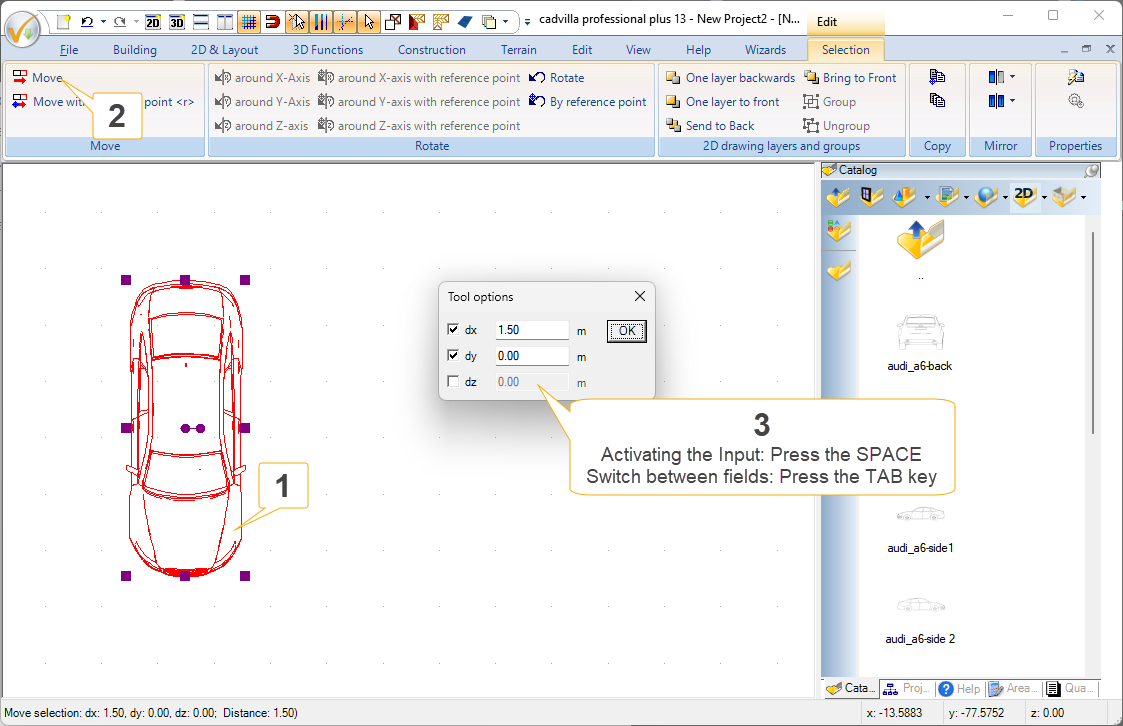
Step 1: Selecting the Target Element
- First, click on your desired element directly inside the active 2D view.
- As a result, the selected element will automatically be highlighted in red.
Step 2: Choosing the Move Function
- Next, navigate to your upper ribbon bar.
- Once there, select the
Movefunction from the available selection menu.
Step 3: Utilizing the Tool Options Window
- As soon as the function is active, the selected element hangs on your mouse cursor. Additionally, the Tool options dialogue window opens automatically in the background.
- Activating the input: Press the
SPACEkey on your keyboard to instantly jump into the numerical input fields of the parameter window. - Entering exact values: Now, type in your required distance for
dx(movement in the X-direction) ordy(movement in the Y-direction). - Navigating the dialogue: To switch between the single coordinate fields, simply press the
TABkey. - Confirming the action: Finally, once you have pressed the TAB key until you reach the
OKbutton, press theENTERkey to effectively execute the movement.
2. Important Notes on Mathematical Signs (+/-)
The specific direction of the displacement is determined entirely by the mathematical sign (+/-) you enter.
Positive vs. Negative Values
- Positive value (e.g., 6.00): If you enter a positive number, the object moves in the positive axis direction. Therefore, entering a positive dx moves the element to the right, while a positive dy moves it up.
- Negative value (e.g., -6.00): Conversely, if you enter a negative numerical value, the target object moves in the negative axis direction. Consequently, a negative dx moves the element to the left, whereas a negative dy moves it down.
Recommendation: Please note that this method works exactly the same for safely positioning all selectable architectural elements inside cadvilla.