In cadvilla, you can flexibly navigate between different views (2D top view, 3D view, sections, side views, plan layouts). To maintain high performance in your project, handling these views correctly is crucial. In this tutorial, we will show you how to efficiently manage your workspace.
1. Switch between views
There are three ways to bring an already opened view back to the foreground:
-
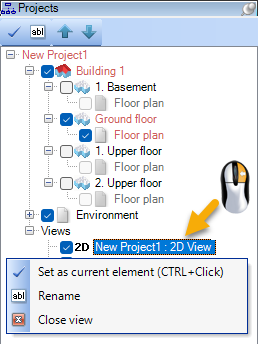
Via the project manager (standard): Right-click on the desired view in the project manager (on the right side of the screen) and select
Set as current element. - Via keyboard shortcut (quick method): Hold down the
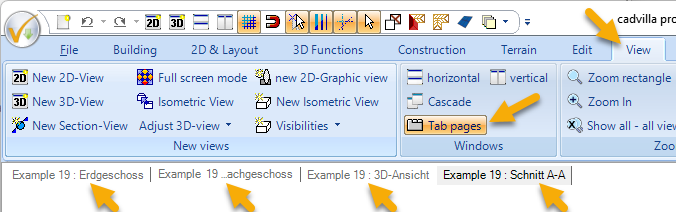
CTRLkey andleft-clickdirectly on the desired view in the project manager. - Via tabs: If you have activated the
tab pages, you can simply click on the corresponding tab at the top of the screen to switch the view.
- Important note: Avoid opening a new 2D or 3D view via the main menu every time you just want to switch. This leads to an unnecessarily large number of open windows and strains your computer’s processing power.
2. Minimize views (Performance tip)
Minimizing is the most effective method to increase processing speed, especially in large projects:
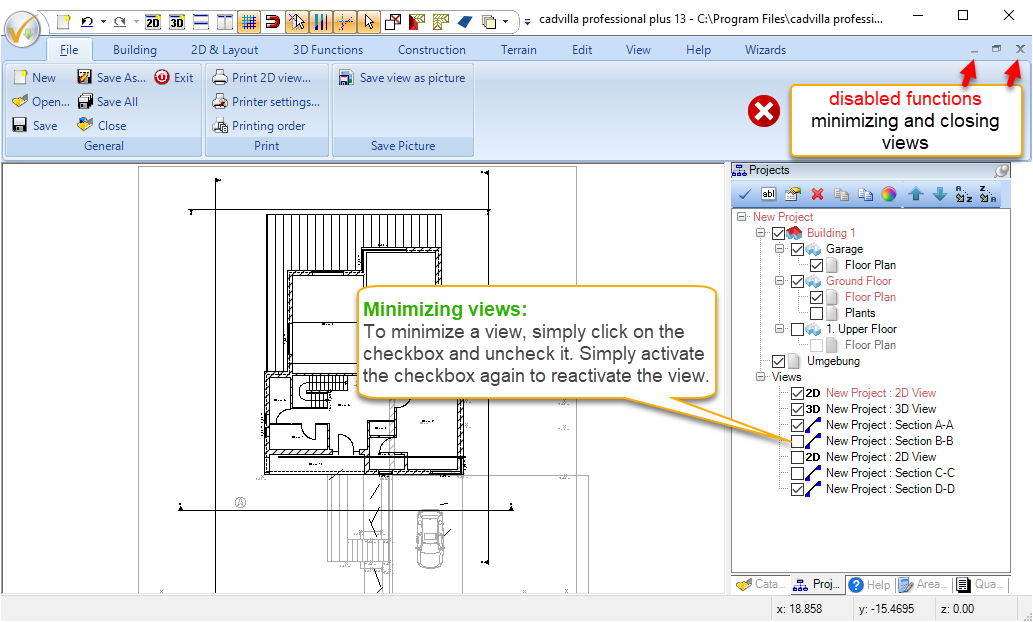
- Procedure: Remove the checkmark in the checkbox next to the respective view in the project manager.
- Advantage: Minimized views are “invisible” and are no longer updated by the program in the background. Complex calculations (such as Hidden Line rendering) are omitted, freeing up valuable system resources.
- Reactivate: If you check the box again, the view is immediately recalculated and displayed.
3. Close views
If you permanently no longer need a view, you should close it completely:
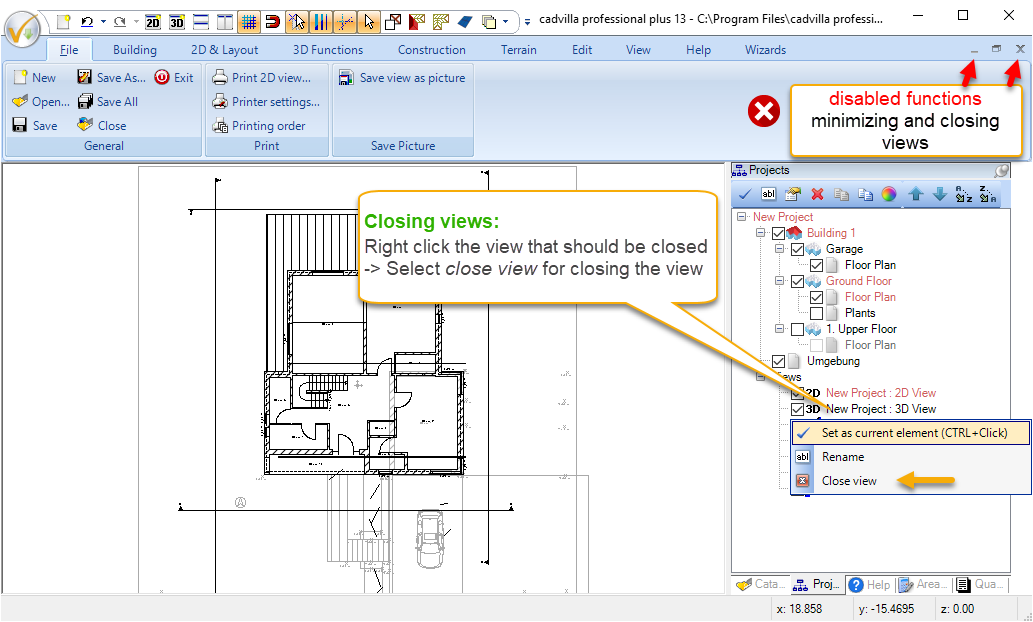
- Procedure: Right-click on the view in the project manager and select
Close view. - Note on operation: As of version 12, the close symbol (x) directly on the window was removed at the request of customers to prevent accidental closing. Therefore, please exclusively use the method via the project manager to close your views.