Products > cadvilla basic

cadvilla basic ...

Full Version29,95 €*Buy nowAdditional Backup-CD add. 9,95 EURO
incl. shipping costs
buy now >>*)  prices incl. TAX - Download ~ 880 MB

Upgrades to this version you find here

… an introduction to the world of architecture software

With its ease of use and construction aids for all input, cadvilla basic helps you design your dream project. Even complicated floor plans can be quickly created to scale without special CAD knowledge and with a minimum of effort. Planning your dream home becomes a 3D experience!

In addition, cadvilla basic makes it easy to visualize interior designs and is the ideal design software for planning and re-planning interiors – live your living dream!

To learn cadvilla basic quickly, we recommend you cadvilla Tutorial. A detailed comparison of the functions provided by the various versions can found in the menu under Products - Compare Versions.


  • Version Highlights
  • More Features - Part 1
  • More Features - Part 2
  • Sample Pictures

Features of cadvilla basic in detail

(All the functions and features described below are a part the cadvilla basic software)

  • Compatibility and Language Options

    All versions of cadvilla - cadvilla basic, cadvilla basic plus, cadvilla professional und cadvilla professional plus - are fully compatible to one another, so that data produced in one version can always be used in any other version.

    Further, the user language displayed by the cadvilla architecture software can be configured by means of a setting in the menu. It is therefore possible to switch quickly between various languages. The languages currently provided are English and German.

  • Input Options and Construction Aids

    Input Options and Construction AidsThe program allows you to create scaled floor plans of unlimited complexity. Grids, guidelines, and options for numerical input are provided to aid input.

    Further, to simplify input a context menu contains entries for various construction aids. These are particularly helpful for construction with the help of a midpoint, an intersection point, a point at a distance of, a perpendicular, a parallel point, a point in line or coordinates.

    These construction aids are provided for all input, for example for inserting walls, windows and doors, and make it possible to create very quickly a floor plan.

  • 2D Guidelines

    2D GuidelinesDifferent types of guidelines, and methods of creating them, are provided for 2D plan views and 2D elevations/cross-sections.

    For lines there is a difference between a straight line and a straight length. Straight lines are 'infinite', whereas a straight length has a start and end point, which is reflected in the different methods for entering them.

    All types of guidelines can be suppressed in any view using the visibility option for construction aids.

    The properties for colour and style can be set for all types of guidelines. These properties can be changed later, and can also be specified when the guidelines are being created in the properties dialog, which is activated over the context menu opened with a right mouse click. The advantage of doing this when the guidelines are being created is that they then automatically have the right properties, and do not have to be modified later.


  • Input in 2D Plan Views and 3D Views

    Input in 2D Plan Views and 3D ViewsThe software operates in principal on the basis of a 3D model, for which various views can be defined.

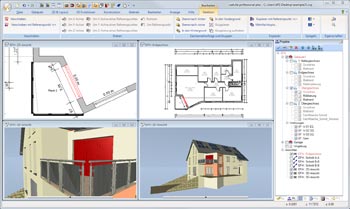
    The following illustration shows a 3D perspective view and a 2D plan view. Several view windows, with varying content, can be displayed at the same time.

    Since internally all views have equal rights, all user actions, e.g. selection, insertion, positioning etc., are, if applicable, performed in the same way in all views. Furthermore, all views are updated simultaneously so that the user can follow the effects of changes in 3D as well as in 2D.

    The individual view windows can be presented vertically or horizontally tiled, cascaded, or in tabbed form.


  • Walkthrough in the 3D View

    'Walkthrough' mode can be activated in an active 3D view.
    In this mode direction and inclination are controlled by movements of the mouse. The mouse wheel can be used to alter the height of the viewing position.

    Forward and sideways movement are controlled by default with the arrow keys. Other key combinations and further options can be specified in the 'walkthrough' dialog.

    Movement can be accelerated by a specifiable factor by pressing the SHIFT key when moving.


  • Doors and Gates

    Doors and GatesThe software offers a large selection of different doors types and gates. These range from standard doors to glass doors and gates.

    If you move the cursor over the floor plan, then in the vicinity of walls, a preview is shown of the door you have selected for insertion.

    The positioning of the door is then performed with the help of guidelines or construction aids.

    Construction aids are particularly useful for construction with the help of a midpoint, an intersection point, a point at a distance of, a perpendicular, a parallel point, a point in line or coordinates.

    The width, height, direction of opening, and sill height of the selected door / gate can be specified in the properties dialog, together with a choice of representation for the plan view, opening, cross-sections and views.


  • Windows

    WindowsThe software offers a selection of various types of window. These range from windows with one or two casements, with or without bars, to windows with predefined materials, and standard windows.

    If you move the cursor over the plan, then in the vicinity of walls a preview of the window you are inserting, including the direction of opening is shown.

    The window can then be positioned using guidelines or the construction aids.

    Construction aids are particularly useful for construction with the help of a midpoint, an intersection point, a point at a distance of, a perpendicular, a parallel point, a point in line or coordinates.

    The width, height and sill height of the selected window can be specified in the properties dialog, together with a choice of representation for the plan view, opening, cross-sections and views.


  • Stairs - straight, winding, with landing

    Stairs - straight, winding, with landingOnce stairs have been inserted, the program automatically calculates the width and height of the staircase, and based on the step dimensions, a reasonable relationship between rise and tread depth. These values can then be modified in the subsequent input dialog.

    All stairs can be constructed with a solid or a wooden staircase. Different input fields are provided depending on the type of construction. Common to all staircases is that the handrails on the right and left are modifiable. The changes not only apply to the dimensions of the handrail components, such as 'Handrail', 'Balusters' und 'Kick plates', but also the shape of a component can be selected from a number of predefined shapes.

    On inserting a landing staircase, individual landings are created automatically at each corner of the polygon. A setting for the minimum distance between landings, defines at which point the software creates stairs between two landings.

    For the representation of stairs in the 2D plan view you can choose between standard, lower part visible, upper part optionally visible, or a representation with separation lines.


  • Roof Construction

    Roof ConstructionThe program allows for the automatic or manual construction of hipped, mansard, overhanging mansard, gabled, half-hipped with opening, single-ridged and shed roofs as well as a combination of these roof forms.

    Furthermore, the roofing, timber framework, rafters and details of the gable ends and eaves are automatically constructed once the roof has been defined.

    The program automatically makes recommendations for the roof structure, including roofing, timber framework, rafters and details of the gable ends and eaves.

    The associated roof editor simplifies the definition of new, complex roof forms.

    A profile type, e.g. gabled, shed, hipped or half-hipped, can be specified for each roof plane. For the particular profile selected, the required parameters are requested and explained immediately with the aid of 3D drawings.

    The ability to define the attic wall sill and inferior purlin for each roof plane is a further feature of roof construction.

    For visible purlin heads a particular shape can be selected from those defined under gable end details.

  • Ray tracing (calculating lighting and shadows)

    Ray tracing (calculating lighting and shadows) in 3D views is an important feature of cadvilla. Ray tracing takes into account all visible elements and objects in the scene, and their current settings.

    The available settings for ray tracing have a considerable effect on the quality of the representation. These settings include anti-aliasing, smooth shadows and ambient shadows, the intensity of which can be specified before ray tracing is activated.


  • Objects, textures and materials

    Comprehensive catalogs for objects, texture and materials are a standard feature of cadvilla.

    - Over 1400 high-quality objects
    - Over 5000 high-quality textures
    - Over 1000 high-quality materials

    Furthermore, the standard catalogs can be upgraded with additional collections from various manufacturers.


Further functions of cadvilla basic in detail – Part 1

(All the functions and features described below are included in the cadvilla basic software)

  • Surface Editor

    Surface EditorThe surface editor can be used to create 3D surfaces in any plane.

    Once a plane or surface area (e.g. wall, roof, surface area of an item of furniture) has been selected, a parallel surface can be created in the shape of a polygon, rectangle or parallel plane.

    In the subsequent dialog for the surface created you can specify the thickness of the surface and the distance from the selected plane.

    Whenever a surface area is defined, first all openings such as windows, doors or wall recesses included in or under the surface are detected and shown in the dialog.

    Examples for the use of the surface editor are
    - façade cladding
    - tiled backsplashes for kitchens and bathrooms
    - window surrounds
    - patios and other landscape features
    - work tops
    - additional roof elements
    - and a lot more.

  • Dormers

    DormersThe function for dormers allows you to insert various types of dormers into existing roofs.

    Possible types of dormer are gable dormer, shed dormer, hipped roof dormer, triangular dormer, trapezoidal dormer, barrel roof dormer, and bat dormer.

    Dormers and their framing are fully integrated into the roof.

    The dormer walls and roof are automatically created when the dormer is defined. Modifications to the timber framing of the roof are automatically taken into consideration. The rafters are removed in the area of the roof where the dormer is inserted, and the rafters for the dormer roof are also constructed.

    If necessary, you can of course subsequently modify and add to the dormer with the aid of settings for various characteristics.


  • Skylights

    SkylightsA large selection of skylights is provided, with various types and styles of skylight (an extract is shown in the illustration). Included are, of course, skylights from the manufacturer Velux.

    Skylights can be inserted in both 2D and in 3D views. On switching roof planes, the skylight is, if necessary, automatically turned to face the outside of the roof. In 3D views the roof plane, in which the skylight is situated, appears transparent to allow a view of the rooms and the timber construction beneath.

    When skylights are inserted, matching openings in the timber construction are created automatically. The dimensions of the timber for the openings are identical to the dimensions of the rafters specified in the 'Roof' dialog.

    Skylights can be positioned freely within a roof plane using the mouse. The calculated position of the skylight can be numerically adjusted, with regard to the sill height and the opening height, in the properties dialog for the skylight.

  • Solar Modules and Solar Collectors

    Solar Modules and Solar CollectorsSolar panels and solar collectors can be positioned on roof planes using the normal input functions.

    Solar elements behave in a similar way to skylights, but in addition also have options in the properties dialog for on-roof mounting or roof integrated mounting.

    For roof integrated mounting solar elements create openings in the roof cladding, but not in the roof lining.

    In the case of on-roof mounting no openings are created in the roof cladding.

    When solar elements are positioned with drag and drop from the catalog they behave like normal 3D objects.


  • Chimneys

    Chimneys begin on the floor in which they are inserted and extend upwards through all upper floors and the roof.

    The option for height can either be set as an absolute height in relation to the floor in which the chimney is located, or as a relative height above the highest ridge of the roof defined for the current building. An absolute height for the chimney can also be specified.

    Under structure, you can specify the number and the dimensions of vents, as well as an option for ventilation.

    By default, the 2D representation of the chimney in 2D plan views is dependent on the shape of its 3D model. Other representations can be allocated using 2D symbols from the catalog. A representation using a symbol is automatically scaled to match the absolute dimensions of the chimney.


  • Beams - lower / upper Beams

    Beams above or below a ceiling behave on input in a similar manner to walls, i.e. they join up on input, and can be inserted as a polygon or individually between two points.
    Beams below a ceiling are automatically placed on the underside of the ceiling, whereas beams above are placed on the ceiling structure and modify the floor of the room.

    Apart from the width and height of the beams, the line style for display, the material for the upper, lower and exterior surfaces, and structural layers can be specified.


  • Supports

    Supports can have a round or rectangular profile. Both forms can be positioned freely with a single mouse click. The dimensions of the support, the representation of its outline and the building material and its characteristics, can be specified in the 'Properties' dialog. By default, supports automatically assume the height of the floor of the building and the level of the layer in which they are being inserted.

  • Walls, ceilings, floors - multi-layer elements

    Walls, ceilings, floors - multi-layer elementsConstruction components, such as walls, roofs and floors, contain structural layers with their own properties. By default, for each of the components mentioned above, at least one layer is always defined.

    Further layers can be created and their properties modified. For each layer you can specify a name, thickness, building material, a layer separator and the location of the layer within the structure. Multi-layered structures which are frequently used can be saved in the folders provided, for future use in other projects.

    Once a wall has been defined, it is shown in the 2D view with the appropriate fill patterns, layer thicknesses, hatchings, colors, font sizes and line styles.


  • Ceilings - automatic Ceilings - manual Ceilings

    For each floor of the building the software automatically creates a ceiling over the first exterior contour of connected rooms.

    In some cases automatic ceilings are not necessary or desirable. Therefore they can be deactivated for a floor in the properties dialog of the particular floor. Additionally, the creation of an automatic ceiling can be suppressed when a floor is copied.

    In addition to automatic ceilings, ceiling slabs can also be inserted using a rectangle or polygon.

    As with all construction elements, structural layers can also be defined for ceilings.


  • Dimensions in 2D / 3D

    Dimensions in 2D / 3DThe software basically differentiates between single, multiple and height dimensions (for cross-sections and views).

    The settings for a dimension, with respect to type, style and text, can be changed for an existing dimension, or for any dimensions which are entered subsequently, in the properties dialog for 'Dimensions'.

    As a default, the representation of dimensions according to DIN 1356 is active. Somewhat simplified, the dimensions are then created as follows:

    - Measurements greater than 1 meter are shown in meters with 2 decimal places. Values that follow in cm which must be rounded to 5 are denoted by a superscript 5.
    - Measurements less than 1 meter are shown in cm. Values that follow in mm which must be rounded to 5 are denoted by a superscript 5.

    The function 'Copy Properties' is provided to subsequently change the settings for several or all dimensions.

    The 3D dimension types are available in all 3D previews shown in dialogs. However, here they serve more as a measuring device, since the dimensions are lost when the preview or the dialog is closed.

  • Landscaping Functions

    Landscaping FunctionsThe software provides a range of predefined landscape forms, such as hills, depressions, plateaus, ridges, gullies and banks, to enable you to landscape the terrain. Appropriate dialogs are provided for entering the various landscape forms.

    Additionally, further landscape features can be incorporated. The features available here are flower beds, paths, terraces and watercourses. The appropriate means for entering a feature are also provided, so that for instance a path can be inserted as a polygon or as a spline.
    Landscape features automatically conform to the contours of the terrain and the landscape forms defined.


Further functions of cadvilla basic in detail – Part 2

(All the functions and features described below are included in the cadvilla basic software)

  • Scaling and Creating 'Blueprints' for 2D Floor Plans

    Scaling and Creating 'Blueprints' for 2D Floor PlansImages and 2D Elements can be scaled very accurately. This allows images of floor plans to be inserted and used as a 'blueprint' over which the 3D model of the building can be constructed.

    The procedure for creating a 3D model is quick and easy.
    - Load the image of the 2D floor plan:
    Load the image from a JPG, BMP, PNG or GIF file.

    - Scale the image:
    The image must be scaled to the correct dimensions, as undefined dimensions and incorrect proportions result on insertion.
    This is achieved by entering a reference dimension, which is defined by specifying two endpoints in the image. A dialog box then appears in which the current measurement is shown and which allows numerical input of the actual value. After exiting the dialog the image is scaled to the new dimensions.

    - Inputting the 3D model of the floor plan:
    The floor plan can now be inserted/traced. Measurements for wall thickness, windows and doors can be taken directly from the inserted image using the measuring and dimensioning functions provided.


  • Measurement

    There are two possibilities for measuring lengths:

    - User-defined by specifying measuring points
    - Measurement perpendicular to a selected component e.g. the side of a wall.

    During input, the current values such as angle and distance are continuously updated on the measurement line. A left mouse click terminates the measurement process and the result is shown in the plan, until another measurement is performed, or the measurement function is terminated with 'Esc' or over the context menu.


  • 3D Guidelines

    3D GuidelinesThe software provides various types of 3D guidelines to aid input in 3D views:

    - Guideline parallel to the x-, y- or z-axis, any straight length, any straight line and edge guideline
    - Guideline parallel in a plane
    - Guideline parallel in a plane at a given distance
    - Any guideline (2 points) in a plane
    - Perpendicular guideline in a plane
    - Vertical or horizontal guideline in a plane

    When creating 3D guidelines, the current position is shown by a 3D cursor, which snaps to surfaces, edges and corners. To help create guidelines relative to axes, and for all straight guidelines, the line itself is shown directly.


  • Text -Autotext

    This function allows you to enter your own text in views, or to load and format text files. Further, an angle can be specified for the complete text block.

    The autotext function provides placeholders for values which change from one project to another, such as project name, name of planner, etc. The autotext placeholders provided, are derived from the properties of the views, such as name and scale, and the project properties, for instance names, addresses and remarks for the planned building, the planner and the client.

    Using the autotext feature and the save text function, you can create text blocks for use in future projects, without having to change project related values manually. Using 2D symbols and the standard graphic functions, other applications, such as titles and legends, are also possible.

  • Item Text

    Item TextItem text can be used to label elements (for example, windows, 3D objects and walls) by positioning a text with a line connecting it to the selected element. If several elements overlap, a particular element can be selected over the context menu.

    All properties of an item text, such as the content and style of the text, can be changed if necessary in the dialog, which is activated by a double-click on the item text or over the context menu available for a selected item text.


  • 2D Graphics - Drafting Functions

    2D Graphics - Drafting FunctionsWith the help of these functions you can add additional details, such as lines, polygons, rectangles, circles and ellipses, to 2D views, i.e. plan views, cross-sections, views and parallel perspectives.

    This enables you to add planning details to your drawings for the specification of, for example, sanitation and electrical installation.

    The elements used in the 2D graphic editor, i.e. lines, polygons, rectangles, circles and ellipses, have various properties for their representation, which can be set in the corresponding dialogs and which include the thickness of lines and borders, as well as properties for edges and fill patterns.


Shown below are a few examples which were created with the cadvilla architecture software.

To enlarge one the following images simply click on it. To close the window which is then opened, simply click on close window x. When an image is enlarged, you can also browse the next >> or previous << images using the arrow keys.

sample-picture sample-picture sample-picture sample-picture sample-picture
sample-picture sample-picture sample-picture sample-picture


sample-picture sample-picture sample-picture sample-picture sample-picture