
(Note: The upgrades listed below require an existing cadvilla version 6 or higher.
For possible upgrades of older versions (V1 / V2 / V3 / V4 / V5) including pricing, please contact our sales team)
cadvilla
basic
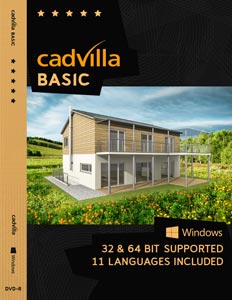
Upgrade
Existing
cadvilla basic
➔
cadvilla basic
12.0.4.0
(Regular € 24,95)€ 17,95 *
cadvilla
basic plus
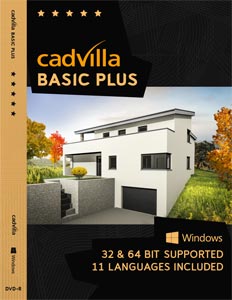
Upgrade
Existing
cadvilla basic plus
➔
cadvilla basic plus
12.0.4.0
(€ 27,95 *Regular € 39,95)
cadvilla
professional
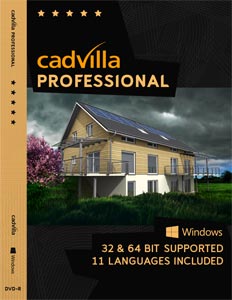
Upgrade
Existing
cadvilla professional
➔
cadvilla professional
12.0.4.0
(€ 67,95 *Regular € 124,50)
cadvilla
prof. plus
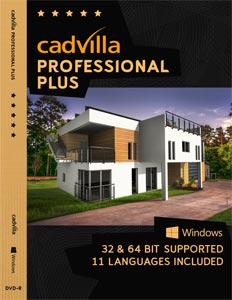
Upgrade
Existing
cadvilla professional plus
➔
cadvilla professional plus
12.0.4.0
(€ 78,95 *Regular € 149,50)

*
Upgrade and switch to a larger version of cadvilla at the same time
You want to extend the scope of your version and upgrade to a larger version? Here you will find all possibilities.
Additional features of cadvilla version 12
The additional features of cadvilla V12 listed in the following table only represent the most important changes compared to cadvilla V11. Of course, many other smaller modifications and enhancements, as well as the elimination of certain weak points, have also been implemented.
Legend for the following table:
 ,
, – Feature is included in this version
 ,
, – Feature is not included in this version
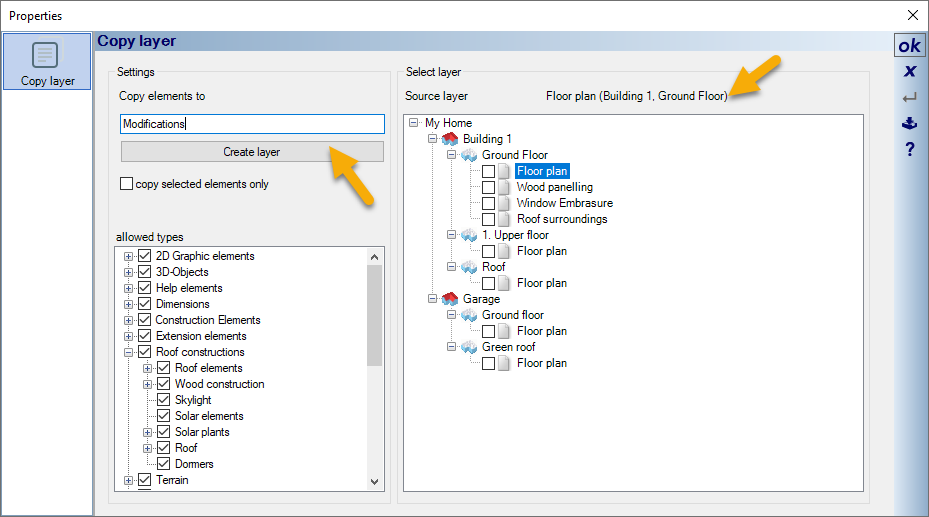
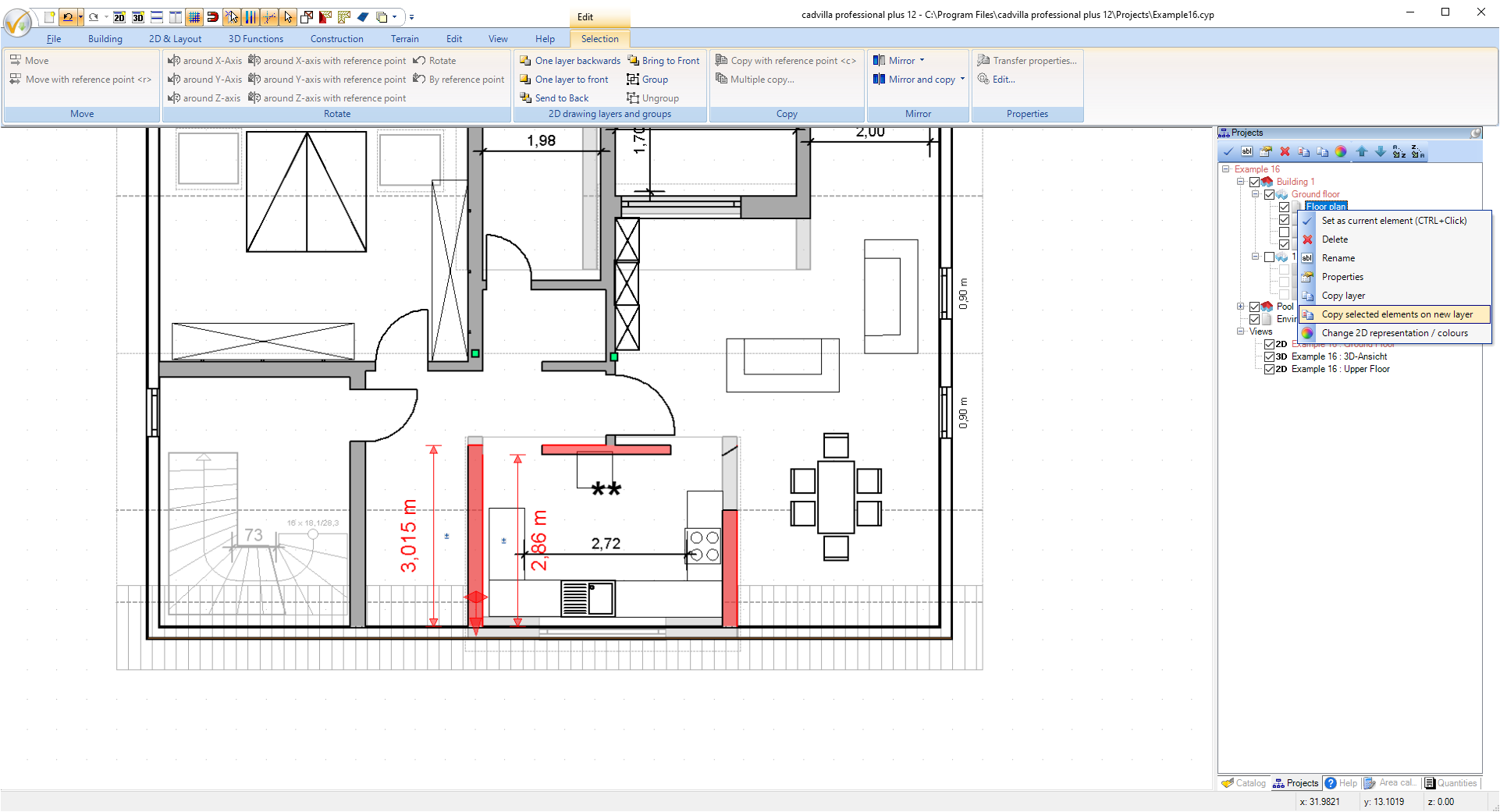
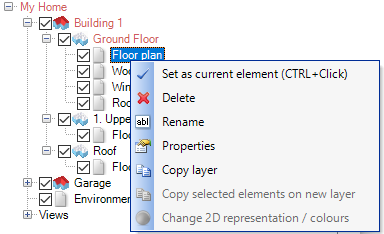 Usually, when the building is created, layers are duplicated by copying them in combination with the floors in which they were created. Now there are new functions for cases in which only one layer should be copied. You can find this in our right mouse button context menu when you click on a layer in our project viewer.
When planning new building elements or elements that are intended for demolition or conversion, it can be useful to copy layers . But also, for example, a layer with interior fittings that was only created at a later time can be copied to other floors afterwards.
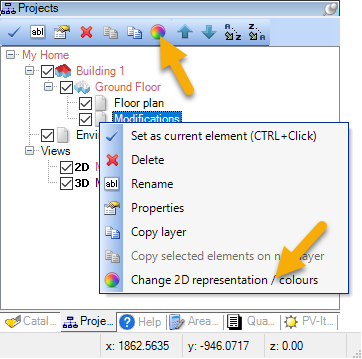
Proceed as follows to highlight walls, windows, doors and stairs for demolition or conversion:
- In a first step, certain walls, windows, doors and stairs that are affected by demolition or conversion are placed on their own (new) layer within same floor. You can also duplicate an existing layer and then remove elements that are not required.
- After that, if you have an existing 2D view, select the selected layer with the right mouse button and go to “2D view, change colors”. Alternatively changing the colors within the selected layer can also be selected via the project viewer toolbar.
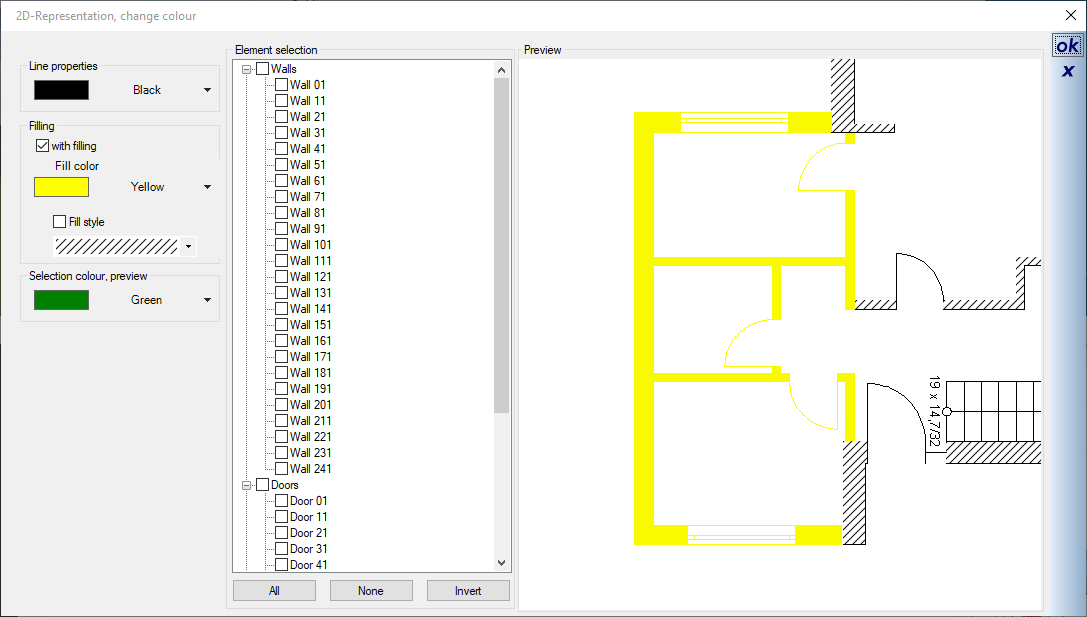
- The dialog for changing the line and fill properties of elements appears.
- By simply clicking on the wall, window, door and stair elements in our preview window, they are colored according to the specifications on the left. The settings can also be changed in between.
- Since the coloring of the elements is a temporary coloring (in contrast to the new dialog for permanently changing the fill properties of walls), the changes can be undone at any time. If coloring is no longer desired for an element, simply disable the checkbox from the element selection tree.
To display parts of a wall (as opposed to an entire wall) in a different color, in red, for example, and thus mark it for a special use case, proceed as follows:
- Select the walls to be changed (with the original lengths) and copy them to a new layer within the same floor using the context menu of the layer (Copy selection to new layer).
- In the context menu of the newly created layer, select the option “2D representation, change colors” and color the walls as desired.
- Change the individual lengths of the affected walls (e.g. by selecting the wall and changing the length, or with the shortcut V)
The result looks like this:
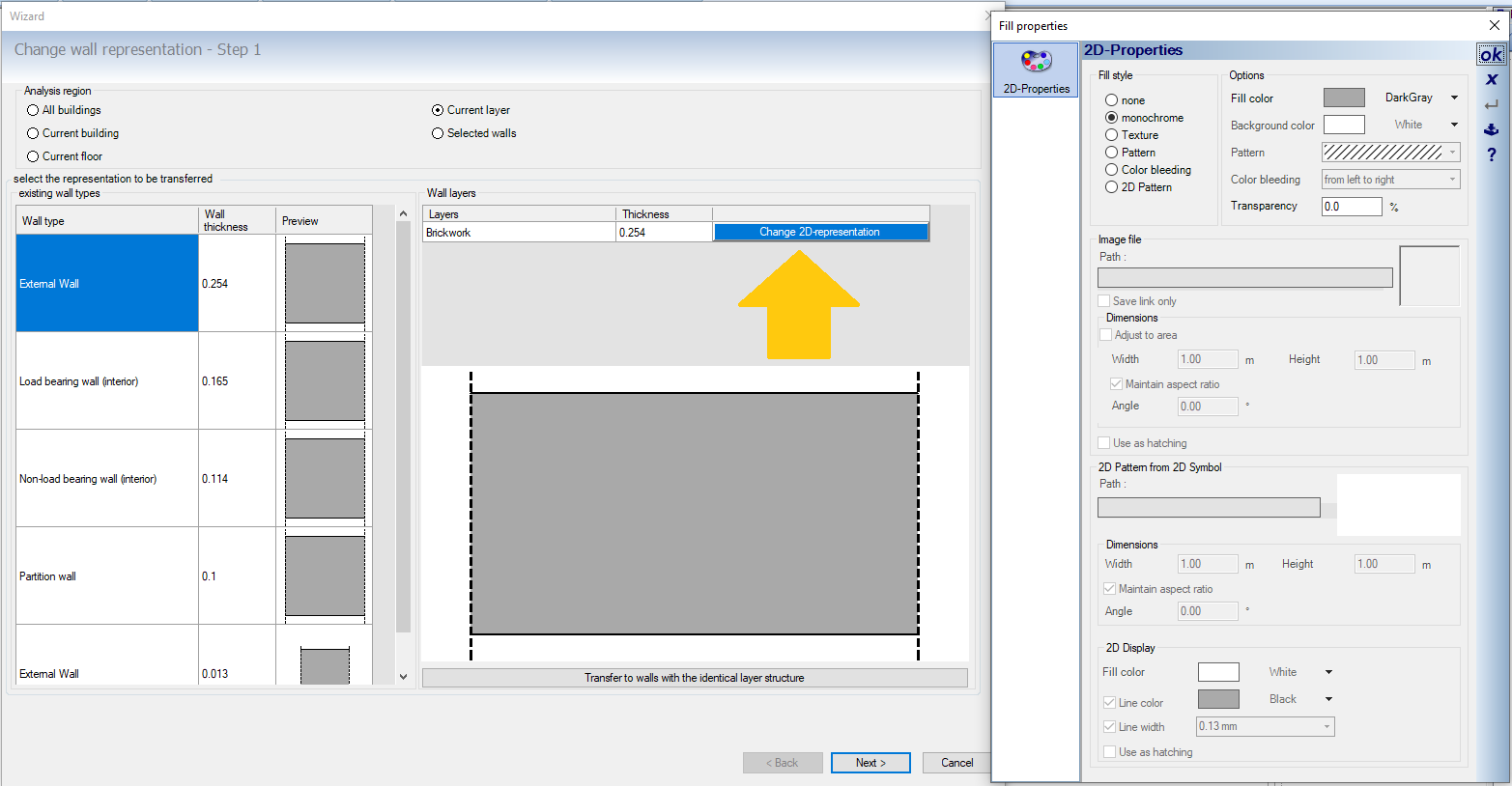
In contrast to the temporary coloring of walls (to highlight demolition or conversion walls), the new dialog under “Edit ⇾ Edit walls ⇾ Change 2D display” is for permanently changing the fill properties of walls in 2D views (plan views).
After starting the wizard, all walls with the same thickness and the same layer structure are listed. Two exterior walls with the same layer structure but different thicknesses are displayed as two different walls, for example.
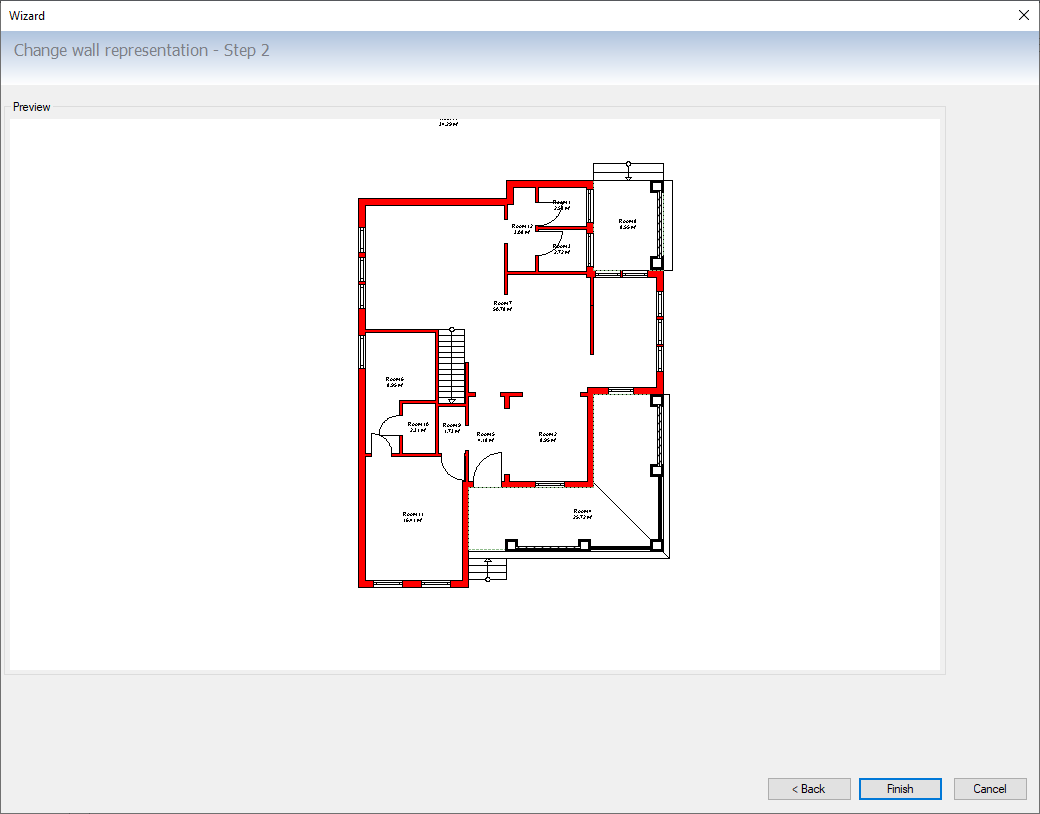
As soon as a listed wall has been selected, it is shown enlarged in the preview. A table appears above this preview showing the wall layers and the possibility of changing the 2D representation of each layer. After clicking on “Change 2D representation” the color representation of the selected layer can be specified in the subsequent fill properties dialog. In a next step you get a preview with all changes that only needs to be confirmed.
The new “Change wall layers” function is located in the “Edit ⇾ Edit walls” area. You first get a dialog with the wall types of your project. After selecting a wall type, a detailed representation of the wall structure and a table with the wall layers appear on the right-hand side. In the table you have the option of specifying one of the contained layers as fixed in its position (fix with the checkbox).

In the second part of the dialog, the layer structure of the wall type can then be changed as usual in our wall properties dialog.
New is that you can now specify whether the
- the position of a specific layer (fixed in the checkbox),
- the inside of the original wall (affects only outside walls)
- the outside of the original wall (affects only outside walls)
- the wall axis of the original wall
should be retained for the new layer structure.
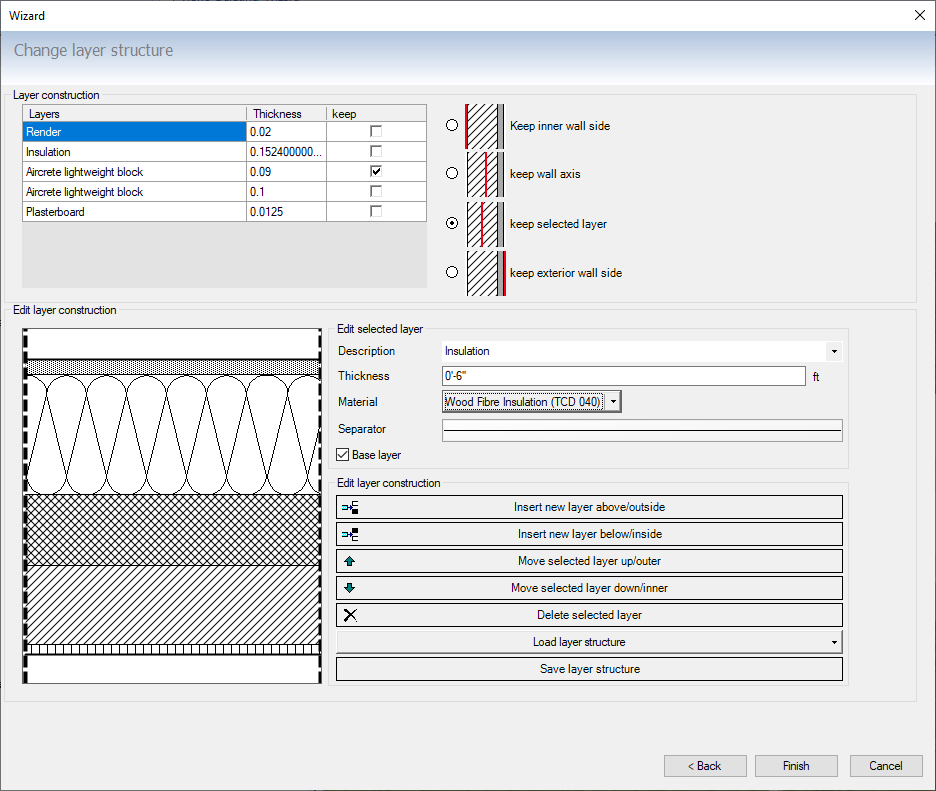
A typical use case for this feature is to quickly change exterior walls. An example: We have defined 32cm thick exterior walls as “masonry with insulating plaster”. These should now be changed to “masonry with insulating layer and plaster” with a total thickness of 42cm. The selected layer (the masonry) should not be changed in its original position. If you make the changes as shown in our screenshots above, this is done with a few clicks.
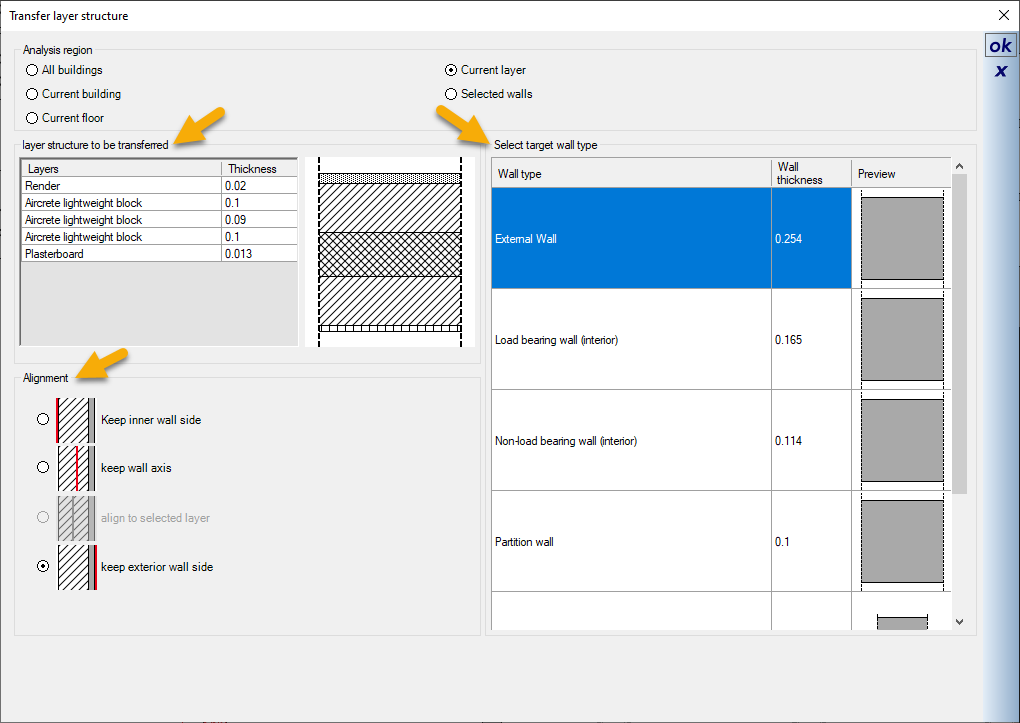
In our previous versions, it was already possible to transfer a layer structure. But it was not possible to determine which axis should be retained for the target wall (exterior, wall axis, inside).
Using the new wizard is of great advantage, especially when changes are made to exterior walls (e.g. addition of an insulation layer).
In the first step, the starting wall with the layer structure to be transferred is selected. This is done either by selecting the desired wall, or via a separate dialog under Edit ⇾ Edit walls ⇾ Transfer wall layer structure.
In a second step, the target walls are defined. What is new is the possibility of specifying the alignment of the layer structure to be transferred for the target wall. This is particularly important when the target wall becomes thinner or thicker due to the layer structure to be transferred. Alignment can specify whether the target wall should keep the inside, outside, or wall axis.
The definition of inside or outside only applies to exterior walls. For interior walls the only correct option is wall axis. Therefore, if the layer structure is changed, the positions of the inner walls may have to be corrected later in a further step.
Drawing a preview of 2D DXF / DWG files to be imported in the dialog has been completely revised and is therefore significantly faster.
Until now, the preview was constantly updated when drawing individual elements and this took a lot of time, especially with large files. Now the preview behaves like in other dialogs with 2D preview and always draws the entire content, which is significantly faster.
 The floor plan analysis is a tool for quickly analysing the connections/intersections of walls within the floor plan and correcting them immediately if necessary.
It is performed in an active 2D view and requires an active layer with walls on it. The floor plan analysis is carried out via the HELP – Diagnosis ribbon.
The following wall situations are checked by the tool and corrected if necessary
- Walls that deviate slightly from 0° or 90° alignment (tolerance adjustable)
- Walls that are too short and do not fully connect to other walls
- Overlapping walls that go completely across the width of connecting walls.
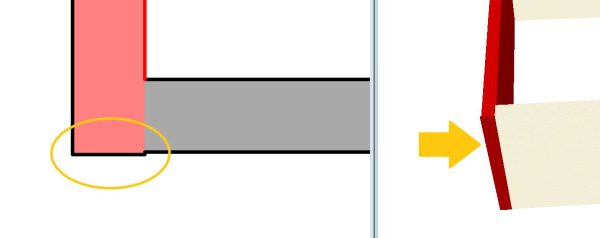
- Walls that are too long in corner situations that protrude slightly beyond the other walls.
Example images for wall situations that can be automatically corrected with the tool
Walls that are too short: In such cases, a wall intersection / room formation is not possible
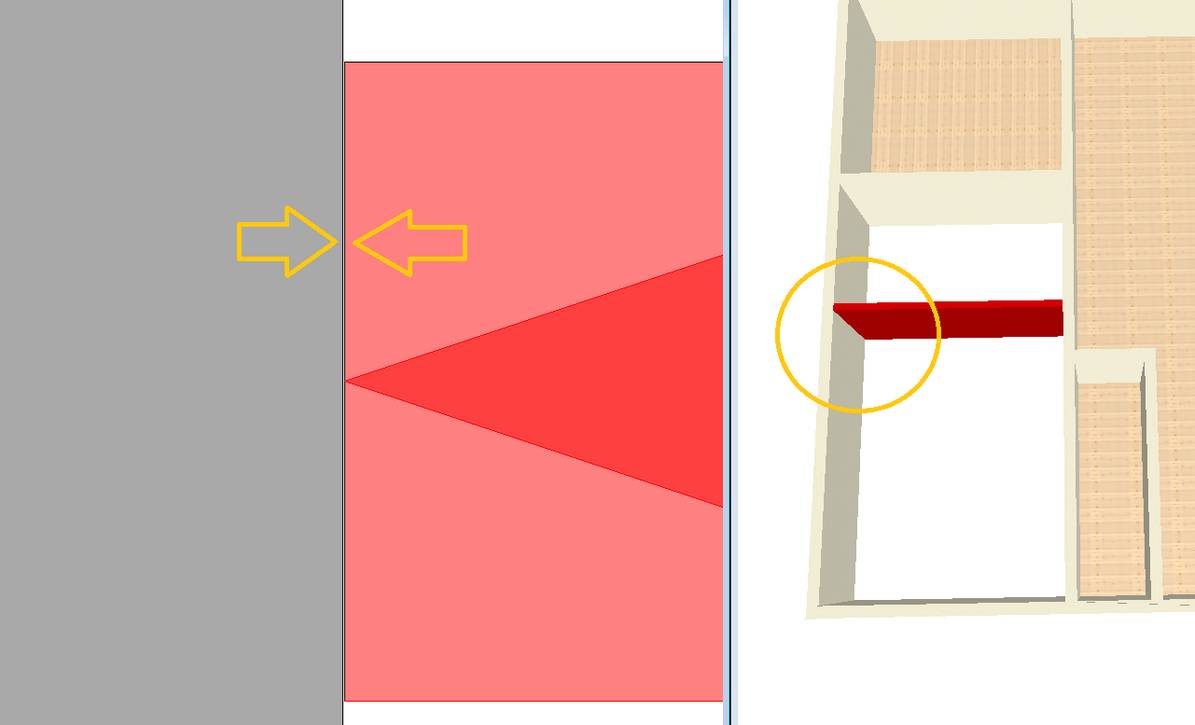
Overlapping Walls: When this is the case, additional segments are created from the face of the crossing wall on the opposite side of the wall. These undesired segments may be taken into account when creating the room and then lead to problems identifying the room contour.
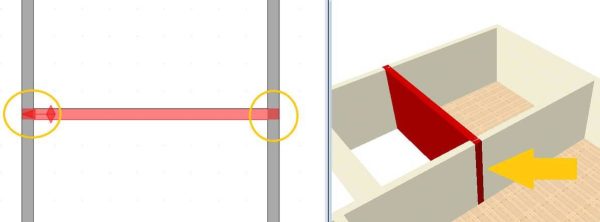
Walls that are too long in corner situations: such cases can lead to problems, for example, when calculating the automatic ceilings or when determining the building contour (to create an opening in the terrain).
The 2D drawing functions under 2D & Layout have been expanded to include isosceles and equilateral triangles. Triangles are often used as part of technical symbols. With this new function you avoid the time-consuming construction of triangles using 2D polygons. Isosceles and equilateral 2D triangles can now be constructed with just a few clicks.
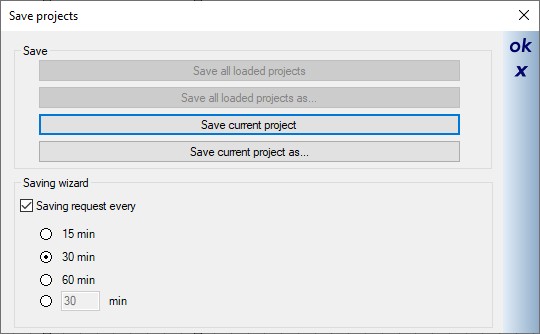 Automatic saving is not always helpful, especially with very large plans and short periods of time. Instead, we added a reminder function which displays the following dialog with buttons for saving.
You can then decide for yourself whether you want to save now or whether you close the dialog.
The buttons are offered with the following variants:
- Save current project: saves the project with the same file name
- Save Current Project As: opens the Save As… dialog so you can save the project with new names, i.e. basically creating a copy of the project, which is highly recommended.
You can also find the settings for the saving wizard in our “Settings ⇾ Program” menu on the “Messages & dialogs” page.
Für das Kopieren und gleichzeitige Spiegeln eines Gebäudes gibt es unter dem Menüpunkt “Bearbeiten ⇾ Gebäude bearbeiten” eine neue Funktion. Das Kopieren der gespiegelten Version eines Gebäudes erfolgt unmittelbar, nachdem Sie die Funktion aufgerufen und die Spiegelachse eingegeben haben. Halten Sie während der Eingabe der Spiegelachse die STRG-Taste gedrückt, um den exakten vertikalen oder horizontalen Verlauf der Achse zu gewährleisten.
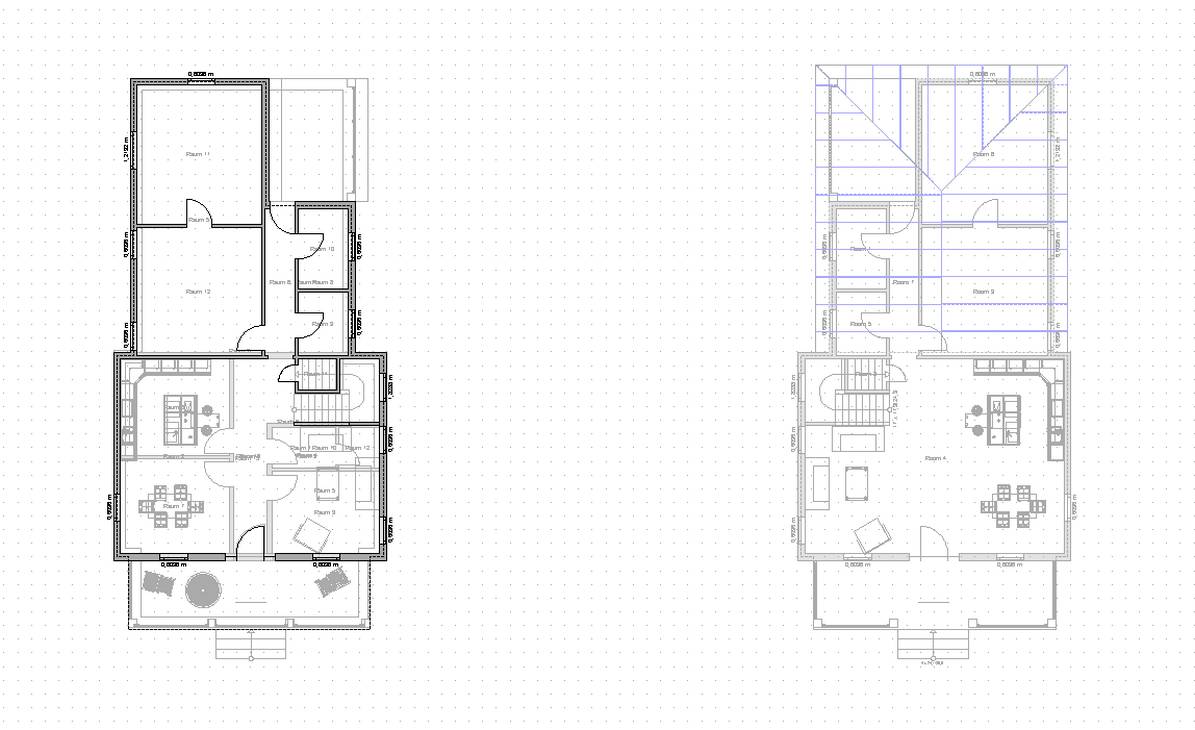
Beachten Sie, dass nicht alle Elemente gespiegelt und kopiert werden können. Dazu gehören unter anderem Dächer und
Bemaßungen. Diese müssen nach dem Spiegeln neu erzeugt bzw. neu eingegeben werden.
There is now a new function for copying an existing floor into a new building (within the same project) or into an existing building of another project, which can be conveniently executed via a dialog. You can find the dialog under “Edit ⇾ Edit building ⇾ Copy current floor”.
In the copy dialog you can copy the active floor to a new building and give the future floor a new name. At the same time, you determine the level at which it is to be inserted in the new building.
Below are screenshots of the dialogs for copying a floor within a project and for copying a floor to another project (new or existing) that is open at the same time.
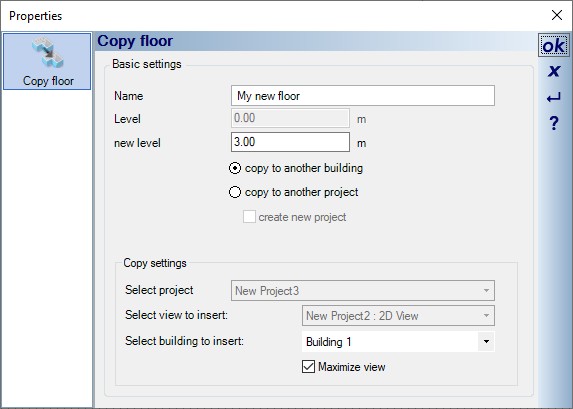
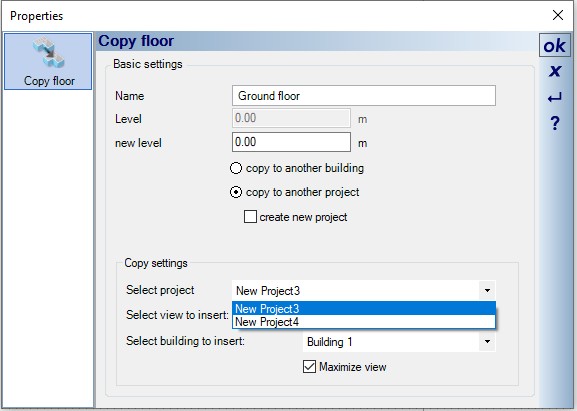
After the settings have been confirmed in the dialog with OK, the floor appears at the cursor and only has to be positioned accordingly in the selected view. If adjacent floors are included in the selected building, you should adjust the levels for the adjacent floors manually (select the “do not move” option in the dialog for adjusting the floors)


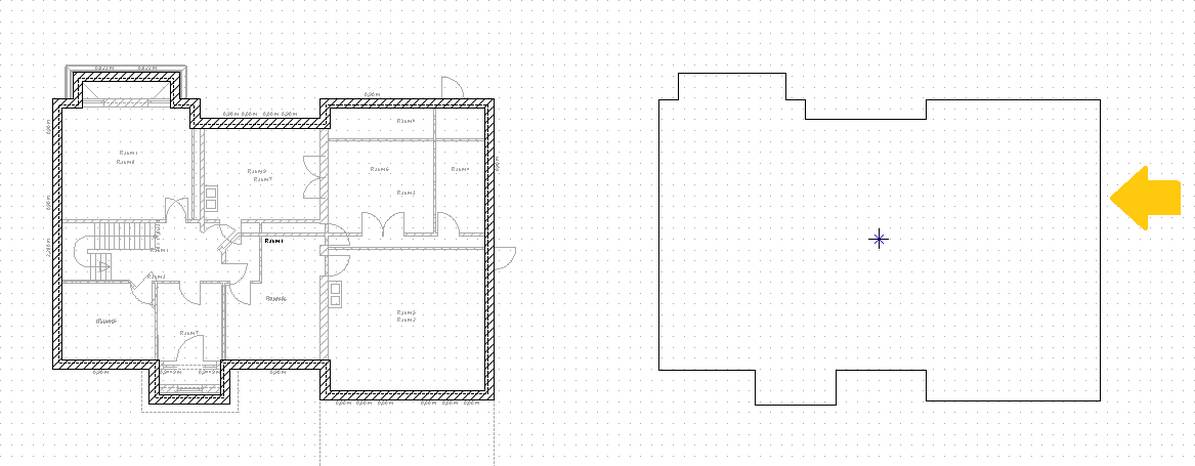
The comfortable moving of floors is now possible with just a few clicks. After calling up the “Move current floor” function under the “Edit ⇾ Edit building” menu item, the software tries to summarize the outer contours of the walls and “add” them to your mouse cursor as a preview.
By pressing the shortcut key CTRL-W you toggle between the corner points of the outline and then position the floor plan at the desired position.
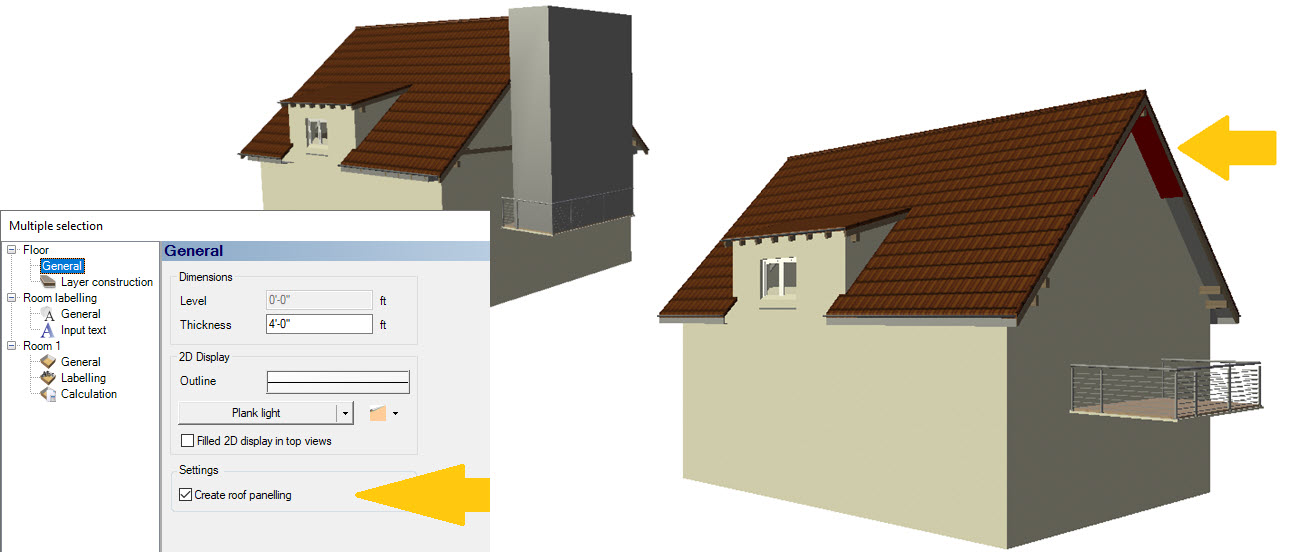
By default, a roof panelling is automatically generated by the rooms themselves and form a surface below the wooden structure of the roof.
In the past, these elements were created with an unwanted solid for those areas not covered by a roof/roof surface (e.g. protruding balconies, terraces). We have now changed this procedure so that the roof panelling is only formed for the area under the roof and the rest of the “room” or its surface is omitted. In addition, the roof panelling for a room can be completely deactivated in our room properties “Floor ⇾ General”.
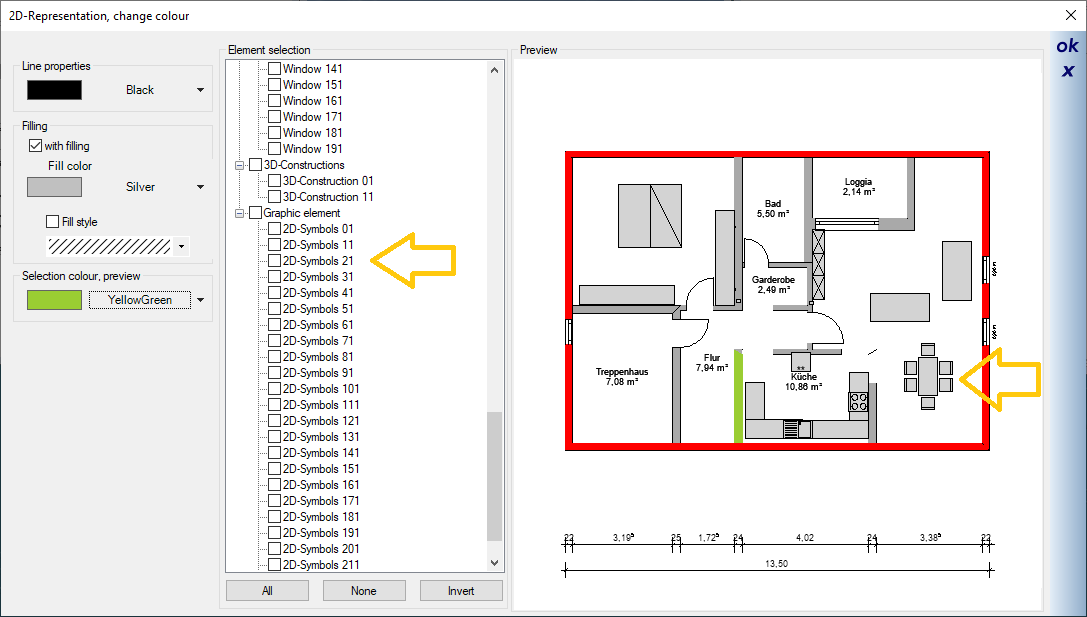
Coloring 2D symbols works similarly to coloring walls, windows and doors.
For example, you can place all electrical symbols on a separate layer and then color them in red with just a few clicks. Or you color 2D symbols of the facility in the desired color.
For large projects with an intensive layer structure, setting visibilities in views can be time-consuming. Now you can take over visibilities settings from another views. In the context menu of the desired view, for which the visibilities should be changed, there is now the option “Apply visibilities of a view…”
The desired (current) view not only adopts the visibility settings of individual elements, but also sets the buildings, floors and layers in our project viewer visible or invisible.
So far, 2D symbols were always created directly via the “Save as…” dialog and only the file name could be specified. In the absence of an alternative, this file name was then also used for the display in the catalogue.
As with other elements, you can now also specify the file name and a so-called logical name for display in the catalogue. The logical name can therefore also contain characters that are better avoided in file names.
- Corrected: The rafters of cornice boxes shimmered through in 3D.
- Changed: Skylight sill heights are now displayed relative to the floor (previously 0 level)
- corrected: Purlin roofs saved as a group sometimes caused problems when separating the groups
- Corrected: The height above sea level was displayed without decimal places in the properties for elevation marks
- corrected: In the case of imperial display, the selected walls and the measuring tool were rounded too imprecisely.
- fixed: openings were wrongly assigned after splitting walls.
- New: layers can now optionally ignore all elements in other slides (important for wall intersection and room calculation)
- corrected: various problems when mirroring elements and buildings.